
Adding users in TRMS
As a Range Administrator, you can add, edit, and remove users from your facility in TRMS. User management is done under Settings → User Management in the top menu.
User roles
When adding a user, you need to assign a role:
- Basic user – Can manage bay assignments and create or delete leaderboards.
- Range Administrator – Has full access, including user management, range settings, and business model updates.
Add a user
|
|
Step 1: Go to Settings. |
|
|
Step 2: At the top of the page, click User Management. |
|
|
Step 3: Click Add user. |
|
|
Step 4: Enter the user’s email and select a role. |
|
|
Step 5: Select the language the invited user should receive their welcome email in. The email includes instructions for setting up their account. |
|
|
Step 6: Click Save. The invited user will receive an email with instructions on how to create their account. |
|
|
Done! The added user will have an empty name until they've logged in for the first time. For information on setting up an account, see [How to create a profile in TRMS]. |


Delete a user
|
|
Step 1: In User Management, click the trash can icon next to a user’s name. Note: You cannot remove the account you are currently logged in with. |
|
|
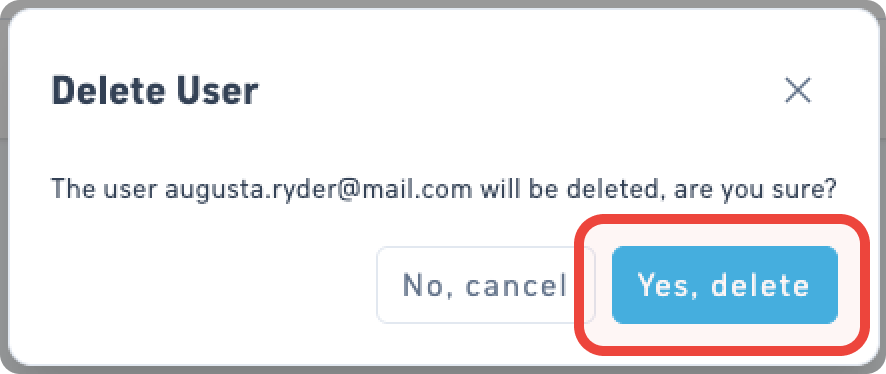
Step 2: Confirm the removal. |
|
|
Done! The user will no longer be able to access your range with their account. |


If you accidentally misspell a user’s email when sending an invite or assign them the wrong role, you can delete the user and add them again.